Gold Nanoclusters.
1. Introduction
This tutorial demonstrates the process of creating a gold nanoparticle structures based on the work presented in the following manuscript.
Manuscript
A. H. Larsen, J. Kleis, K. S. Thygesen, J. K. Nørskov, and K. W. Jacobsen, "Electronic shell structure and chemisorption on gold nanoparticles", Phys. Rev. B 84, 245429 (2011), DOI: 10.1103/PhysRevB.84.245429. 1
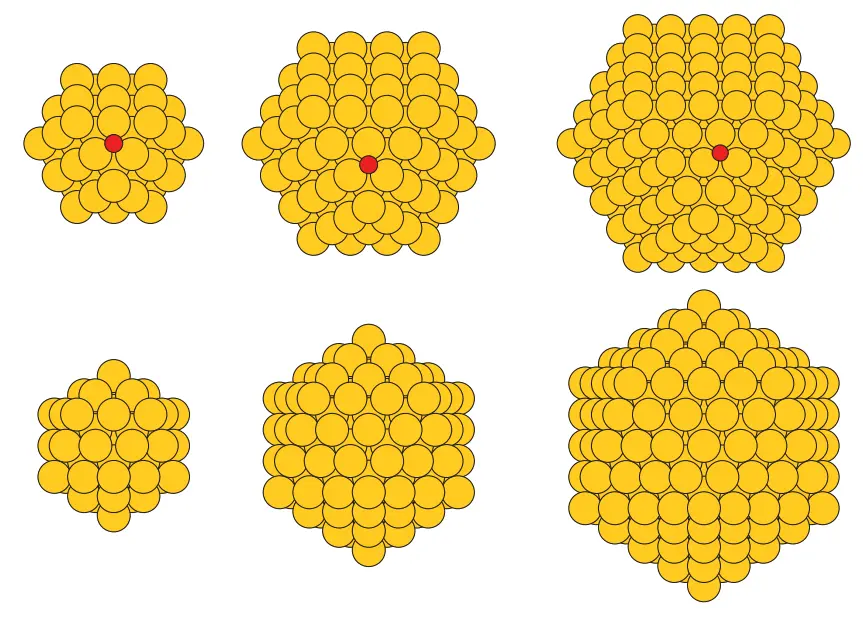
We use the Materials Designer to create gold nanoparticle structures of cuboctahedral and icosahedral shapes as shown in the image below.
2. Load and preview Gold structure
First, we navigate to Materials Designer and import the Gold material from the Standata.
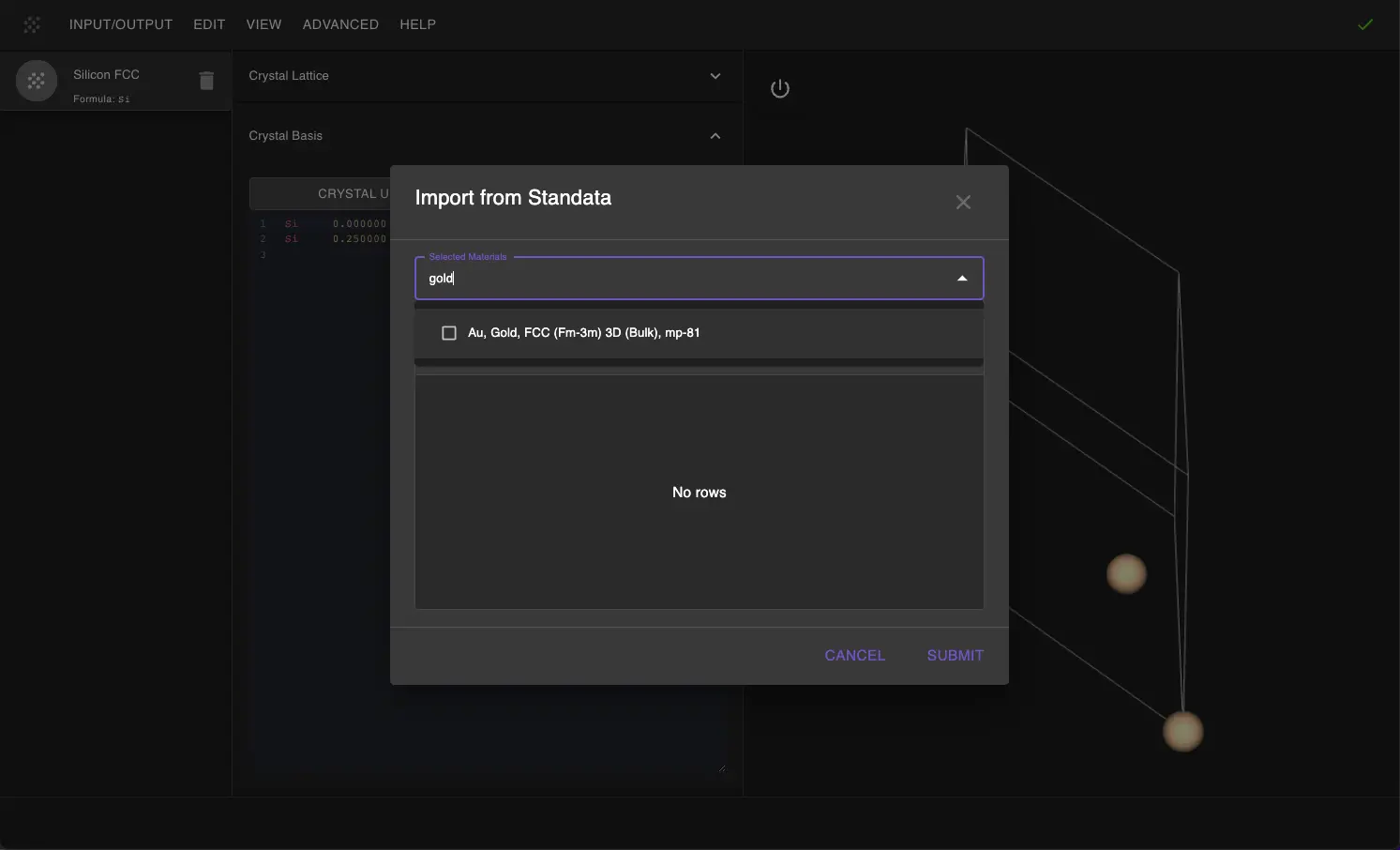
Then we will use the JupyterLite environment to create gold nanoparticle structures.
3. Create cuboctahedra
2.1 Launch JupyterLite Session
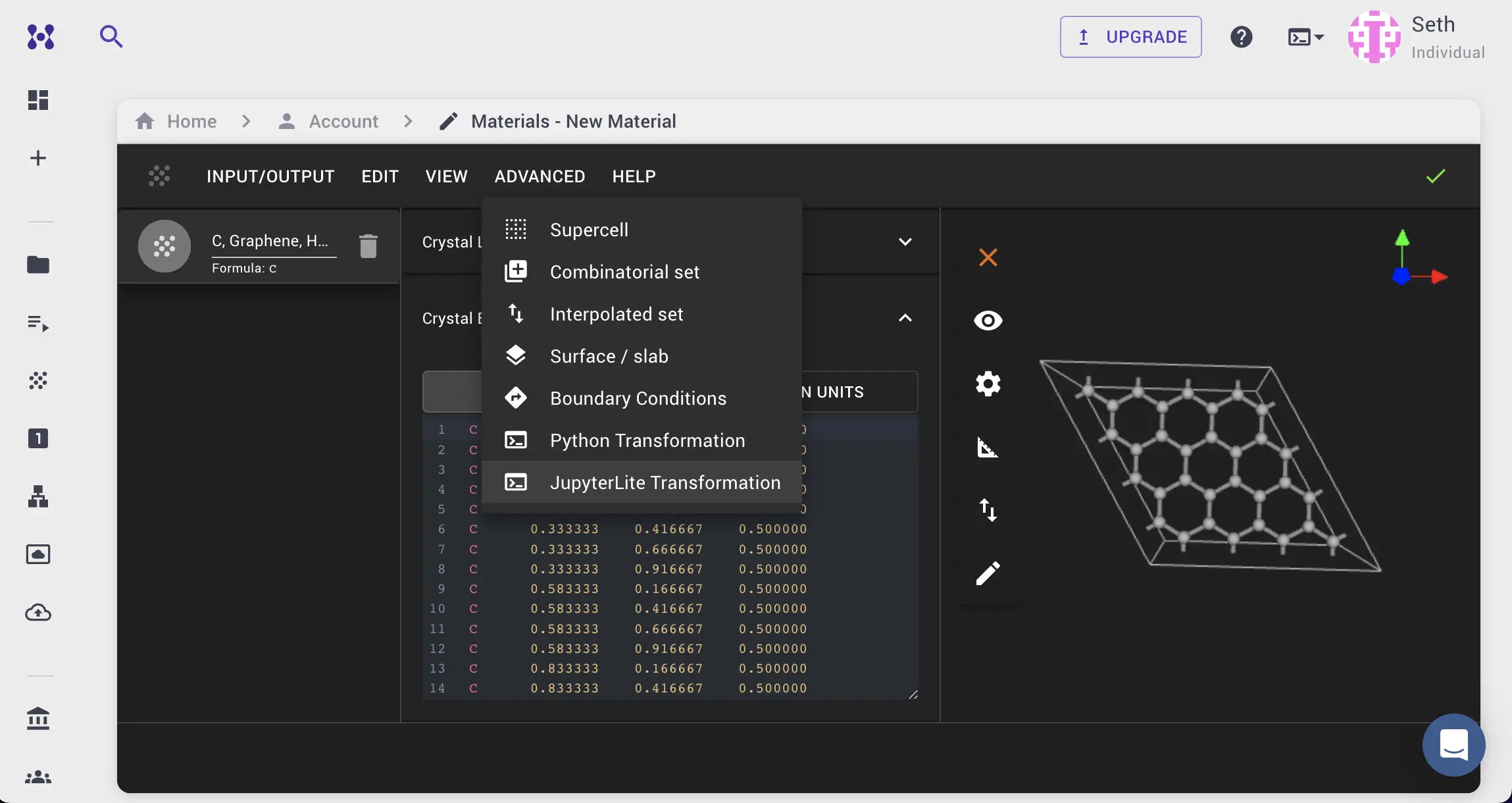
Select the "Advanced > JupyterLite Transformation" menu item to launch the JupyterLite environment.
3.2. Open and modify the notebook
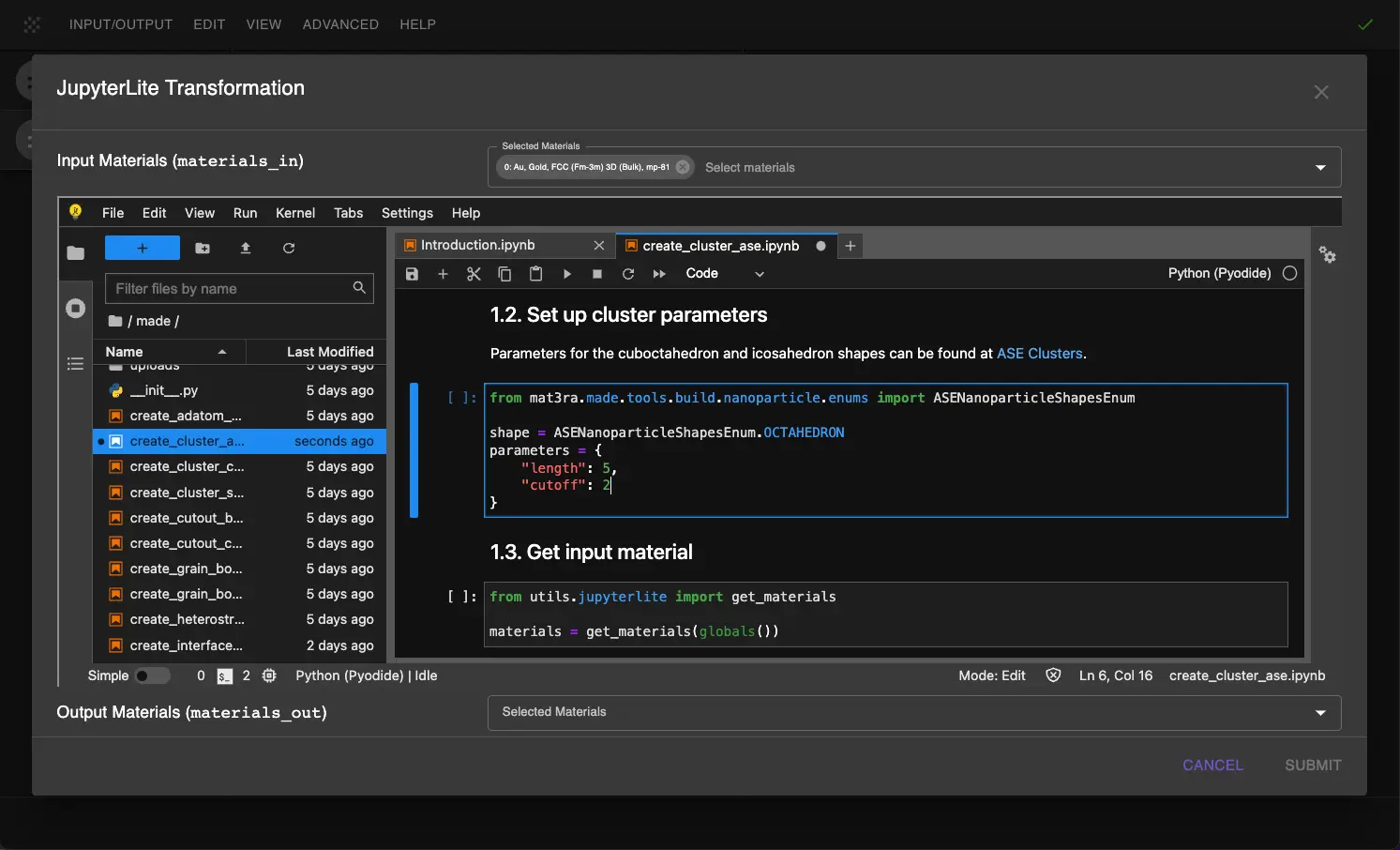
Next, edit create_cluster_ase.ipynb notebook to modify the parameters by changing values:
shape = ASENanoparticleShapesEnum.OCTAHEDRON- the shape of the nanoclusterparameters = {"length": 5, "cutoff": 2}- the parameters of the nanocluster according to ASE Cluster Octahedron documentation.
Cuboctahedron shape is achieved by setting parameters of the octahedron to be in relationship: length = 2 * cutoff + 1
Copy the content below and adjust the "1.1. Set up slab parameters" cell in the notebook:
1 2 3 4 5 6 7 | |
3.3. Run the notebook
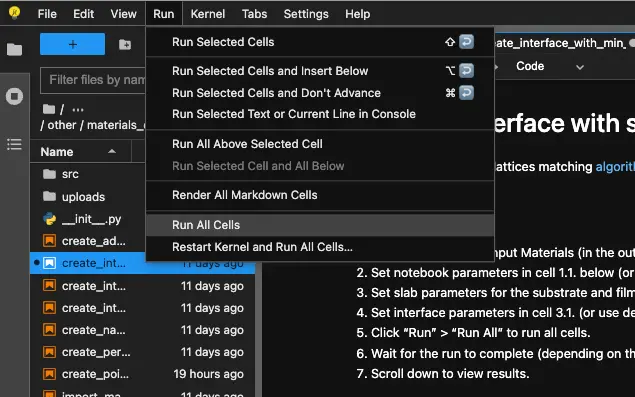
Run the notebook by selecting "Run > Run All Cells" from the menu.
3.4. Analyze the Results
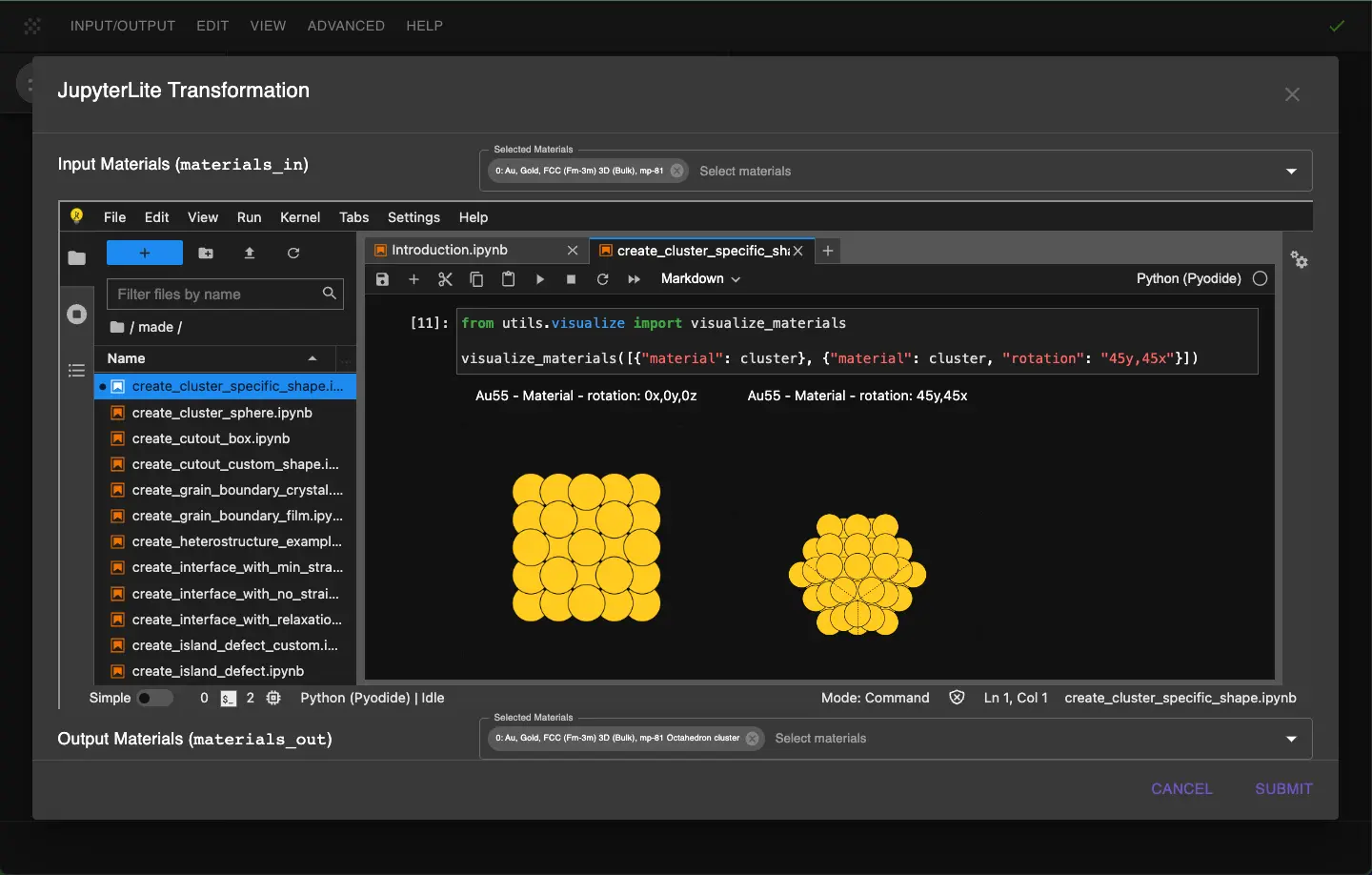
After running the notebook, the octahedral gold nanoparticle structure will be created.
The cluster is built with the conventional (cubic) lattice constant of bulk gold, 4.171 Å, so the Au–Au nearest-neighbor distance is 2.95 Å, as in bulk gold.
The user will be able to visualize the created structure and download the corresponding files.
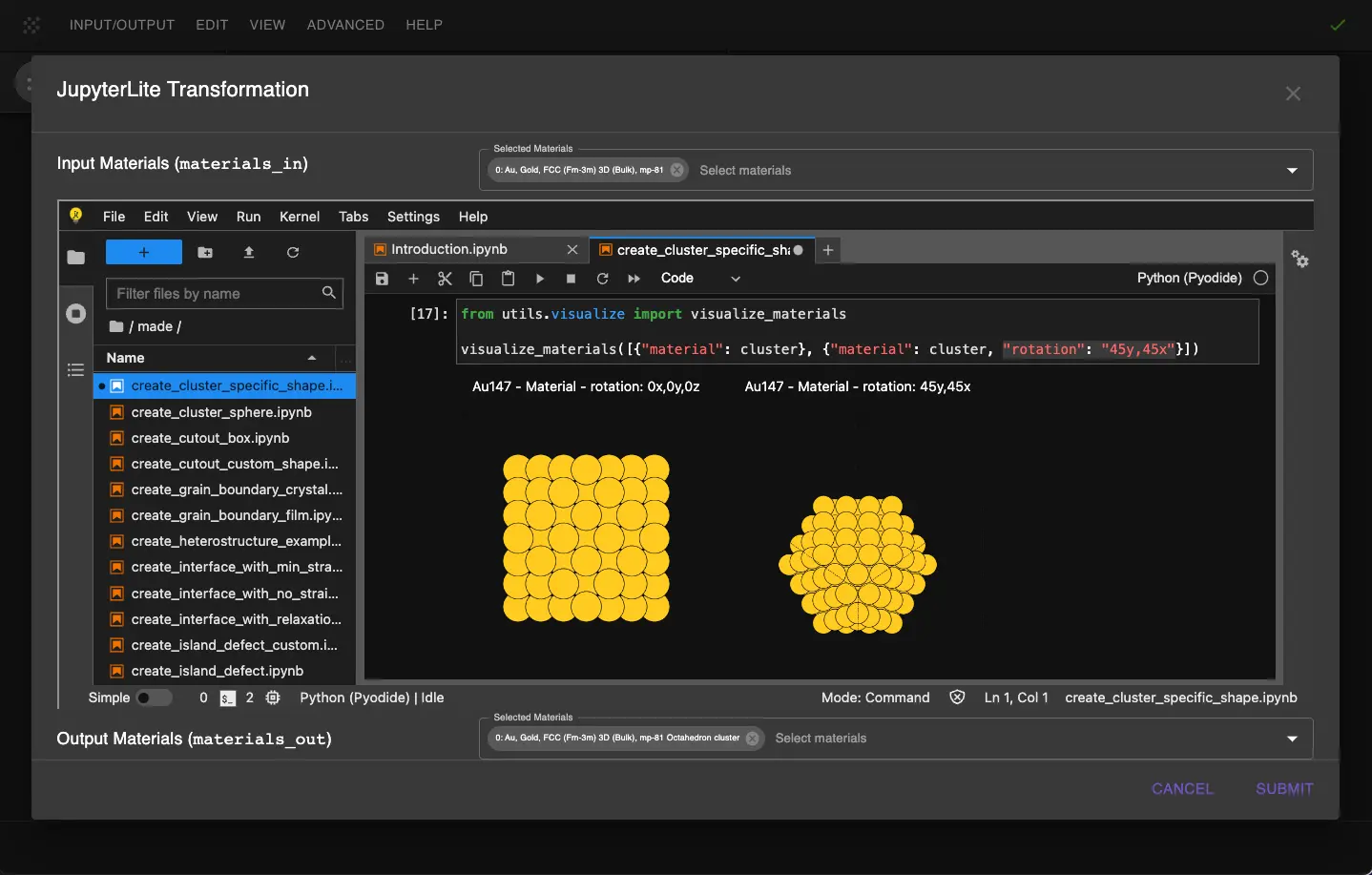
For better view of the solid symmetry rotation of image might be needed like "rotation": "45y,45x" for the cuboctahedron.
3.5. Pass the Material to the Materials Designer
After reviewing the results, the user can pass the material to Materials Designer for further analysis.
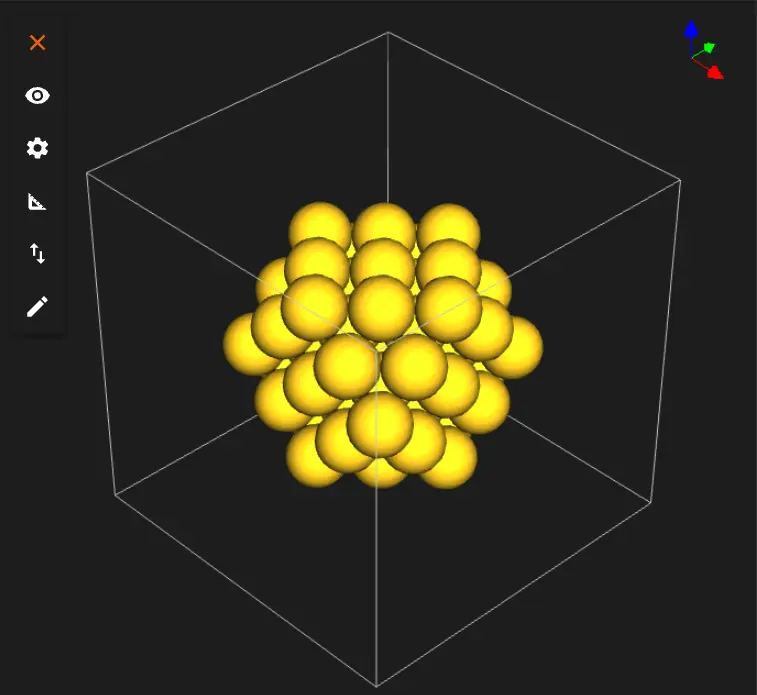
Or the user can save or download the material in Material JSON format or POSCAR format.
4. Create clusters with other shapes and sizes
4.1. Repeat the steps above
Repeat the steps above to create gold nanoparticle structures with other shapes and sizes.
To create the rest of the structures set the shape and other parameters accordingly:
For Cuboctahedron with 147 atoms:
1 2 3 4 5 | |
For Cuboctahedron with 309 atoms:
1 2 3 4 5 | |
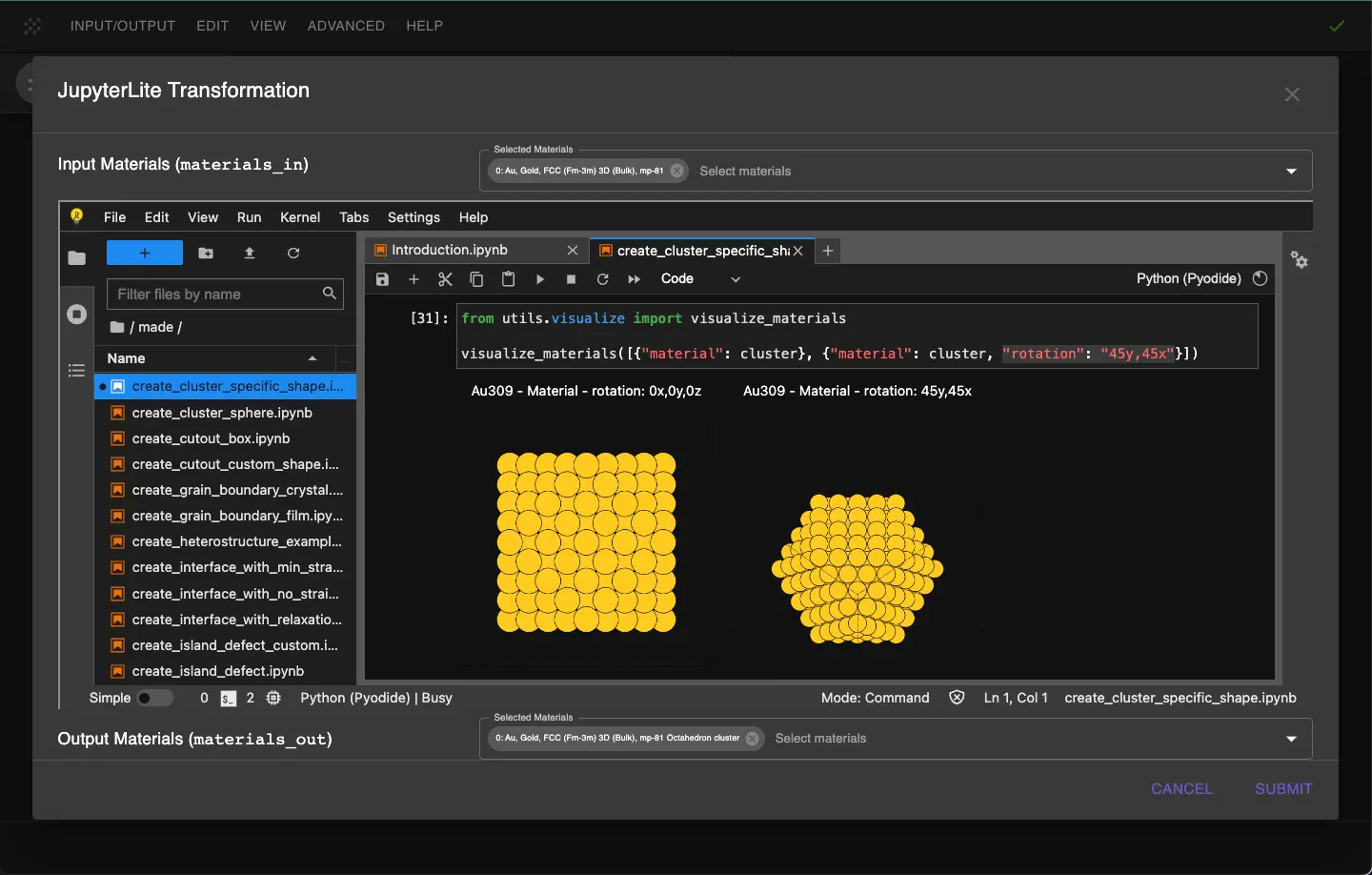
For Icosahedron with 55 atoms:
1 2 3 4 | |
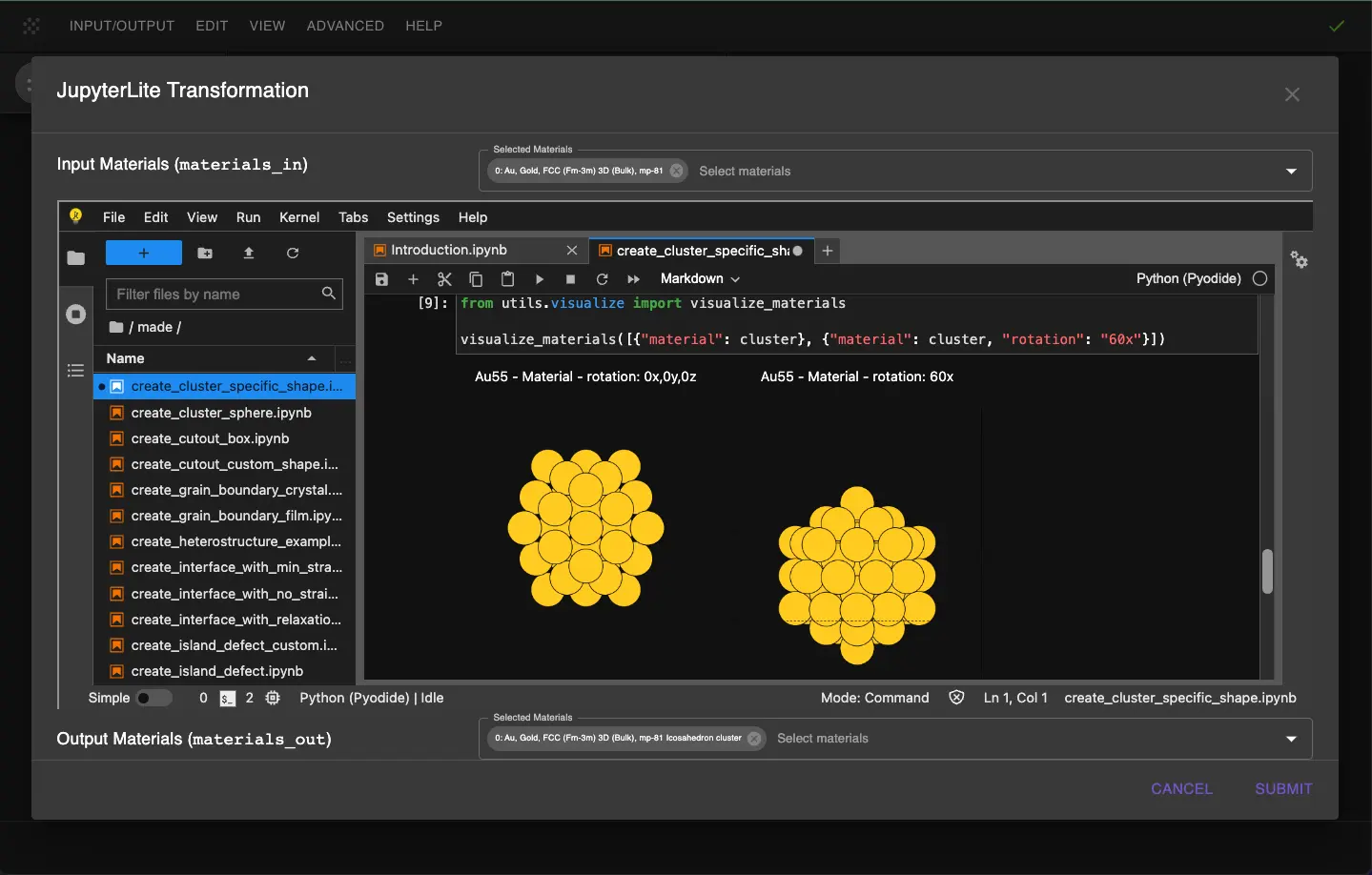
For Icosahedron with 147 atoms:
1 2 3 4 | |
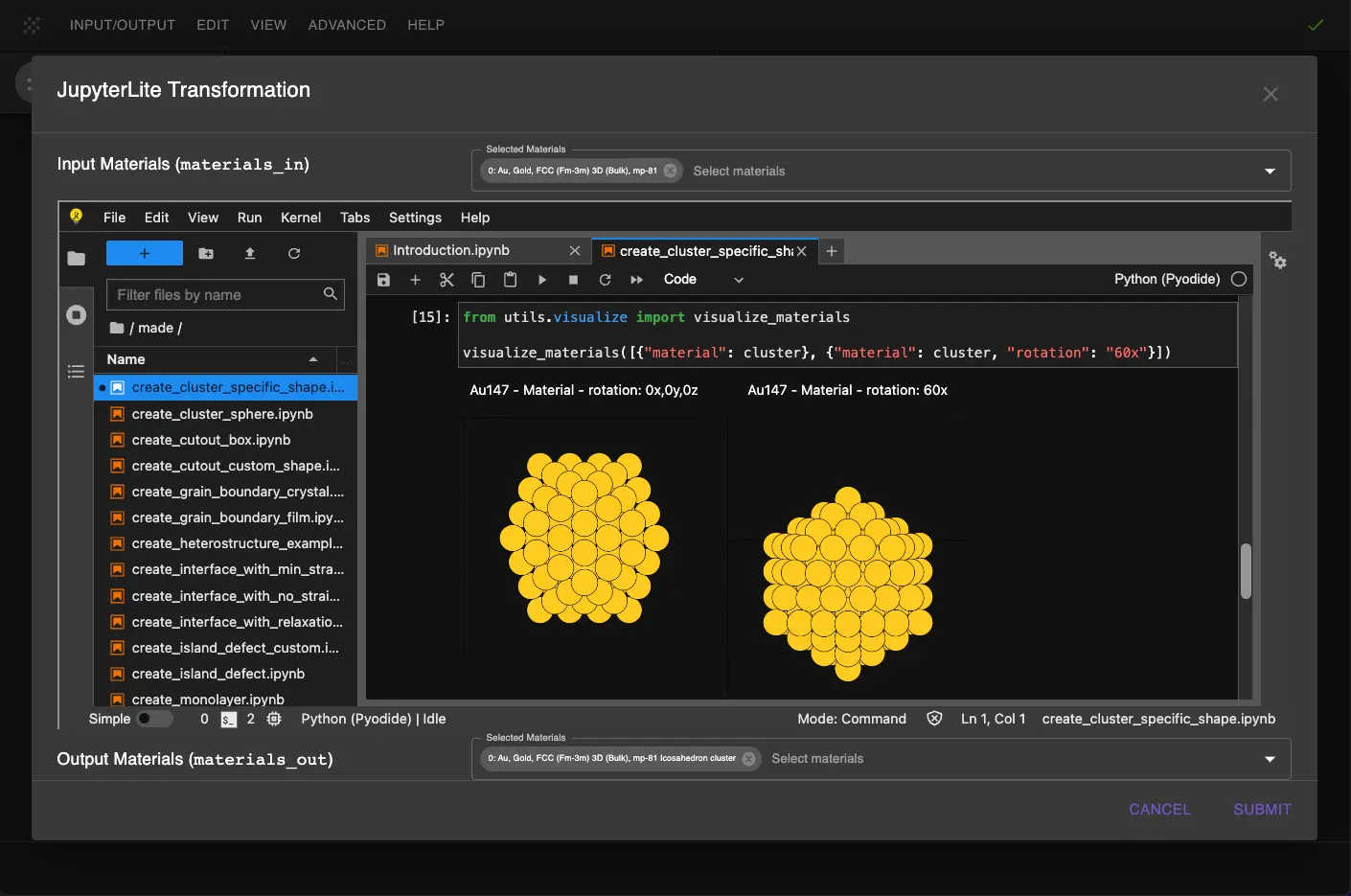
For Icosahedron with 309 atoms:
1 2 3 4 | |
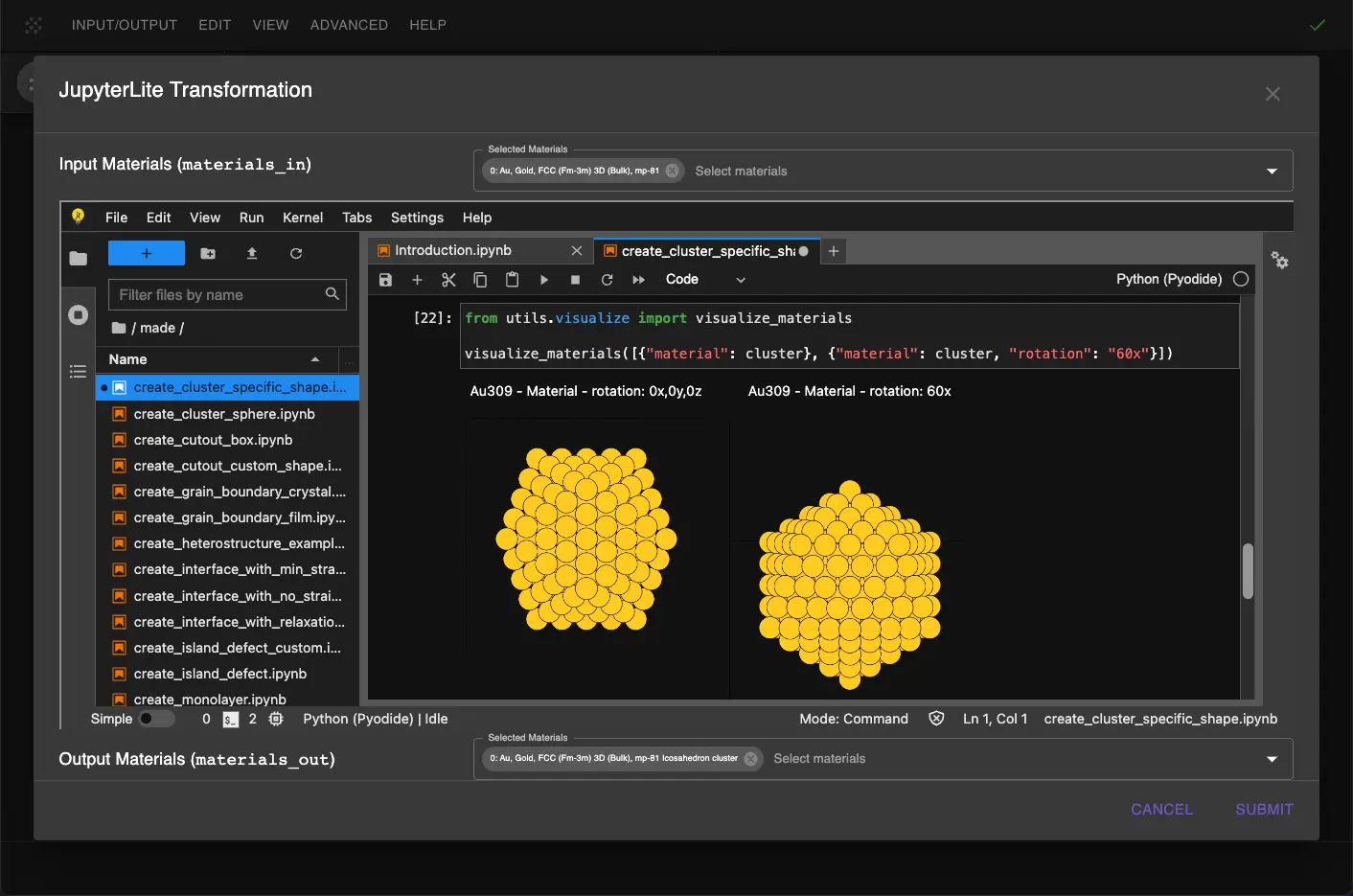
4.2. Create the series between closed shells
The notebook also builds the clusters between the closed shells, following Sec. III C of the manuscript. Starting from the next larger closed shell, 55 atoms for N = 30–54 and 147 atoms for N = 56–60, it removes a randomly chosen lowest-coordinated atom until N atoms remain. Atoms of the next-smaller closed shell are never removed, and atoms of one kept (111) facet only when no other atom is left. The notebook then places the cluster in a box with 5.0 Å of vacuum on each side. The manuscript uses four random seeds per size; the notebook uses one. The parameters are set at the top of the notebook, with the sizes commented out, so the icosahedra of 40 and 55 atoms and the cuboctahedra of 50 and 55 atoms are built by default:
1 2 3 4 5 6 7 | |
Each cluster is saved as Au<N> <Shape>, e.g. Au40 Cuboctahedron, the name loaded by the simulation tutorial.
5. Interactive JupiterLite Notebook
The interactive JupyterLite notebook for creating Gold Nanoclusters can be accessed below. To run the notebook, click on the "Run All" button.
6. References
-
Ask Hjorth Larsen, Jesper Kleis, Kristian Sommer Thygesen, Jens K. Nørskov, and Karsten Wedel Jacobsen. Electronic shell structure and chemisorption on gold nanoparticles. Phys. Rev. B, 84(24):245429, 2011. URL: https://doi.org/10.1103/PhysRevB.84.245429. ↩